Editing & Searching Records
This page provides instructions on how to search for and edit records.
- To batch edit records (only available to collection administrators), visit this page.
- For an overview of fields in the occurrence editor form, visit this page.
- For an explanation of the record editor tabs, visit this page.
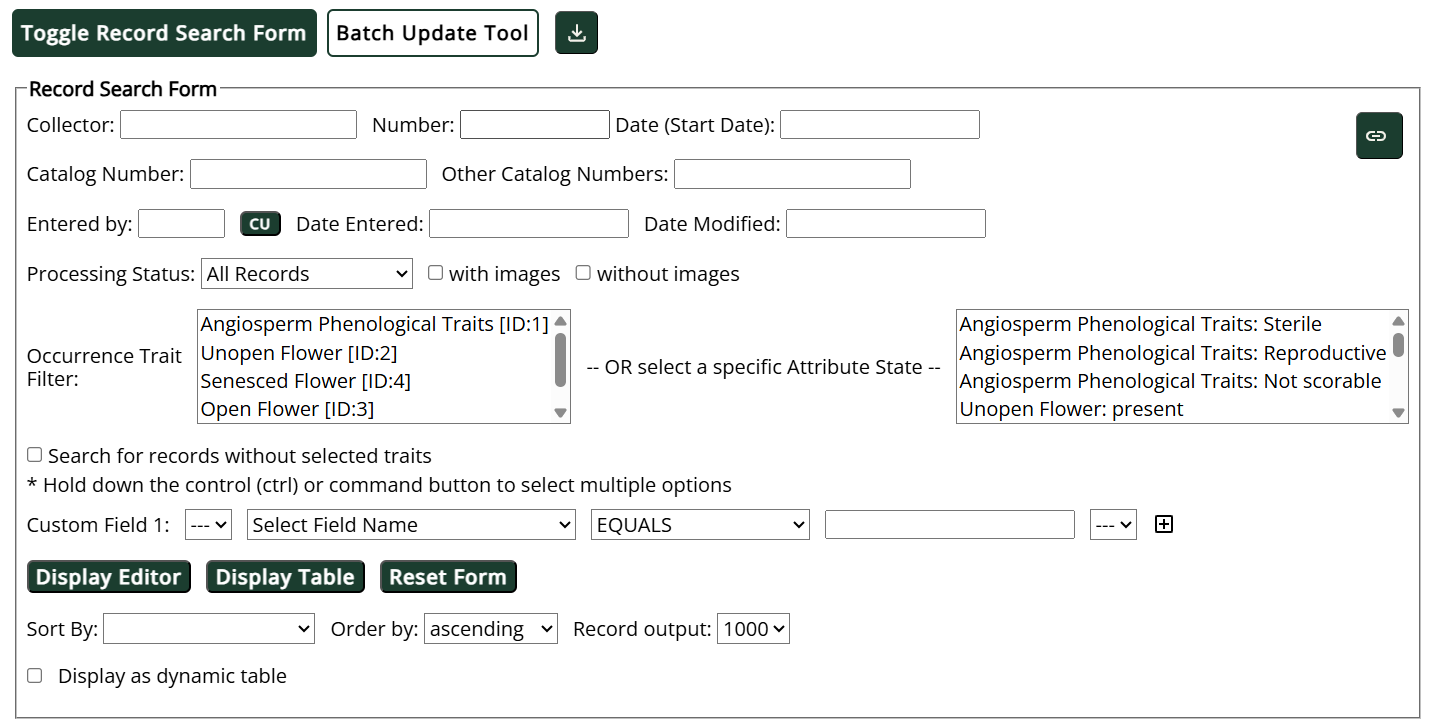
To edit or search for records, select "Edit Existing Occurrence Records" from the Data Editor Control Panel (click My Profile, then the name of the collection in the Collection Management box). On the resulting Record Search Form, you can enter one or multiple search terms to customize your results.
 |
|---|
| Screenshot of a Record Search Form. Note that your Record Search Form may not include the Occurrence Trait Filter, if traits have not been set up in your portal. The Batch Update Tool button will only show up above this form if you are a collection administrator. |
To search according to fields not explicitly stated in the Record Search Form, select the field from the dropdown menu after Custom Field 1. You can include up to 8 Custom fields in your search. The second dropdown lists after the Custom Field names will allow you to conduct more specific searches, such as for ranges or fields that are null. The options include:
- EQUALS: the field contains only the provided text
- NOT EQUALS: the field does not match the provided text exactly (does not only contain the provided text)
- STARTS WITH: the field starts with the provided text
- CONTAINS: the field contains the provided text anywhere in the field
- DOESN'T CONTAIN: the field does not contain the provided text anywhere in the field
- GREATER THAN: (for numeric values or fields that contain numbers) the field contains a numeric value that is greater than the provided value
- LESS THAN: (for numeric values or fields that contain numbers) the field contains a numeric value that is less than the provided value
- IS NULL: the entire field contains a "NULL" (no) value
- IS NOT NULL: the field contains any value but is not empty (NULL)
To conduct a search, click either the Display Editor button (to view one record at a time) or Display Table button (to view the first 1000 records at a time).
When searching for the characters "_" or "%" in your record fields, you must precede this character with the backwards slash "escape" character (\). E.g., when searching for the value "_1", you should enter "\_1".
-
To search by specimens entered by you (the current user), click the CU button.
-
To sort your search results, select a field from the "Sort By" dropdown menu, then select whether you wish to sort in ascending (Z-A, or smallest to greatest) or descending (A-Z, or greatest to smallest) order.
-
To view a specific record from the Table Display, click the Symbiota ID number or the Open in New Window icon in the leftmost SymbiotaID column.
-
To search for records with specific traits or trait attributes, click the name of the trait OR attribute from the appropriate list. To select multiple traits/attributes, hold the Control (or Command, for Mac users) button and click multiple items from the list.
-
To download the results of your search, click the button with the download icon (
 ) at the top of the form.
 -
To copy a link to your search for future reference (or to share with other editors of your collection), click the button with the link icon (
 ) in the top right corner of the form.
 -
To re-open the record search form after you have conducted a search, click the Toggle Record Search Form button.

- The dropdown fields at the beginning and end of each Custom Field allow you to conduct even more specified searches. They contain one or many parentheses, which allow you to enclose subsets of your search query. For example, the query shown below would result in records that EITHER have a Country of Canada OR have BOTH a state/province of Alberta AND do not have a collector name containing "DuPont". The parentheses join Custom Field 2 and Custom Field 3 together so that both must be fulfilled together.
