Duplicate Georeference Harvester
This page explains how to use the Duplicate Georeference Harvester tool, which enables you to copy georeferences (and their metadata) from records of other collections that are linked to records in your collection.
The tool works by allowing you to search for records in your collection and compare their georeference data side-by-side with records that are linked to yours as duplicates (i.e., same collector, collector number, and date). You can then select one of the other collections' records to copy from. Once you click the Copy Duplicate Data button, the other collection's georeference data (decimalLatitude, decimalLongitude, geodeticDatum, footprintWKT, coordinateUncertaintyInMeters, georeferencedBy, georeferenceRemarks, georeferenceSources, georeferenceProtocol, and georeferenceVerificationStatus fields) will be copied into your record.
For this tool to find duplicate georeferences, your specimens must already be linked as duplicates to other specimens in the portal. It is recommended to run the "Batch link specimen duplicates" process in the Duplicate Clustering Tools before using the georeference harvester.
To navigate to this tool, go to your Administration Control Panel (click My Profile, then the name of the collection in the Collection Management box), select Duplicate Clustering, then "Batch copy duplicate georeference data".
Conducting a search
On the resulting screen, you will be given several options to refine your search for record duplicates.
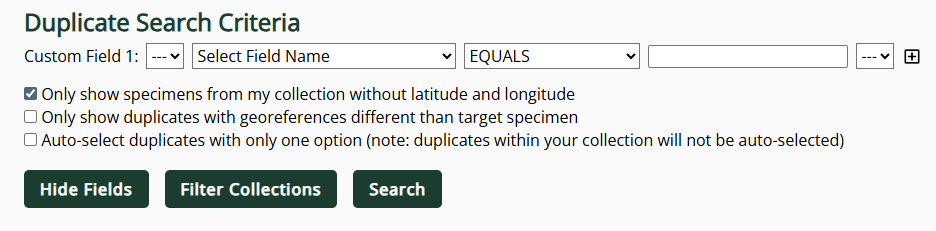
The Custom Fields will allow you to place parameters on the duplicates of other collections that you wish to see. For example, if you only want to see records that have lat and long values, you should select "decimalLatitude" from the second dropdown menu, "IS NOT NULL" from the second dropdown menu, then click the plus sign (to add another Custom Field). In the new Custom field, select "decimalLongitude" from the field dropdown menu and "IS NOT NULL" from the next dropdown menu. Some other useful criteria you might consider include:
- georeferenceRemarks IS NOT NULL
- georeferenceBy IS NOT NULL
- coordinateUncertaintyInMeters LESS THAN 10000 (or whatever cutoff you think is appropriate)
You can also filter which collections you would like to see duplicates of by clicking the "Filter Collections" button.
You can add multiple Custom Fields by clicking the plus sign icon to the right of the last Custom Field used.
By default, the tool will only return results for records in your collection that do not have latitude and longitude values. This option can be turned off by checking the box next to "Only show specimens from my collection without latitude and longitude."
Other options you can use include:
-
Only show duplicates with georeferences different than target specimen: checking this box will exclude any duplicates that match your records' geoferences exactly. All georeference fields (including metadata fields, such as georeferenceRemarks) must match exactly for them to be excluded.
-
Auto-select duplicates with only one option: checking this box will auto-check the boxes next to options from other collections in cases in which there is only one record that matches your search criteria. This way, you can quickly select (and subsequently copy duplicate data from) records that meet your baseline criteria and do not require additional decision-making.
Click the Search button to conduct a search.

Selecting duplicate georeferences to copy
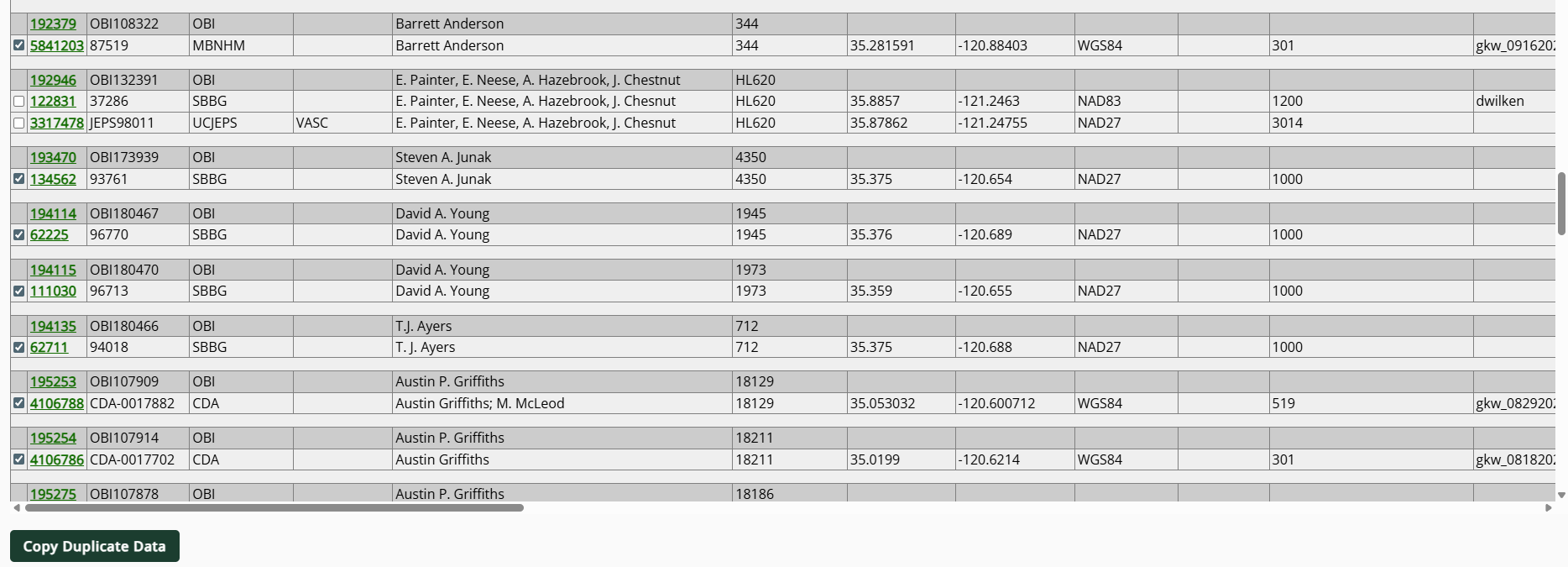
After conducting a search, you will see a table of records that match your search criteria:
 |
|---|
| The "target" specimen/records--i.e., the records that will receive data, if copied--are highlighed by the darkest shade of grey. |
To adjust the fields visible in this resulting table, click the Hide Fields button and check the boxes next to fields you do not wish to see.
Check the boxes next to records that you wish to copy georeference data from.
For records in your collection that have multiple matching duplicates, you must check the box next to only one record (i.e., the record that you think has the "best" georeference, according to your institutional criteria). If you select multiple records, the last record in the listing will be the "final" georeference.
Click the Copy Duplicate Data button when you have selected all the records for which you would like to copy georeference data into your specimen records.
Clicking the Copy Duplicate Data button will replace the georeference data in the target (dark grey) record with the data from the checked duplicate record. That includes all of the following fields: decimalLatitude, decimalLongitude, geodeticDatum, footprintWKT, coordinateUncertaintyInMeters, georeferencedBy, georeferenceRemarks, georeferenceSources, georeferenceProtocol, and georeferenceVerificationStatus. Do not click this button unless you are sure that you want the data from all of these fields included in your resulting record.
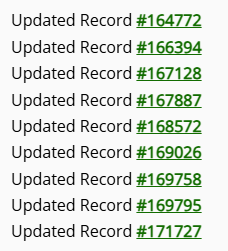
The tool will then process the duplicates and return a printout of all the records updated. Click on the Symbiota ID number link to view any of the records.
Changes made to records using this tool will not be tracked in either the Edit History tab or in the Review/Verify Edits table. However, when a duplicate georeference is copied between records, metadata will be automatically added to the target record's Georeference Remarks (example: "Copied from duplicate UCSB UCSB_SCIRH00972").