Downloading a Copy of your Data
This page describes how to download a copy of your data, including occurrence records, determinations, media resources (as links only), and any other extensions enabled in your portal (e.g., attribute data).
It is strongly recommended that curators or collection managers regularly download and internally archive a backup data file in case of emergency. Doing so is quick and easy. Review the Symbiota Support Hub's Statement on Cybersecurity here.
To download a copy of your specimen data from a Symbiota portal:
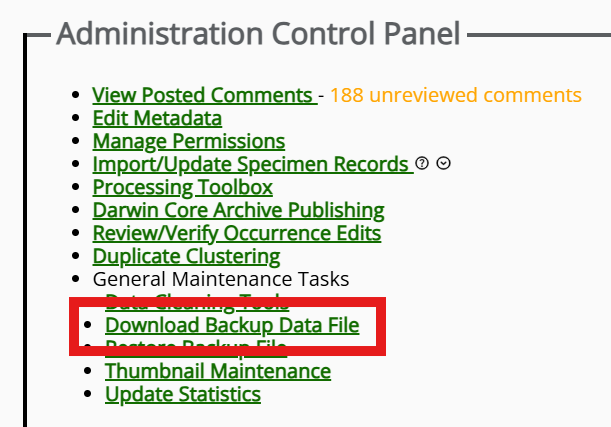
- Navigate to the Administration Control Panel (click My Profile, then the name of the collection in the Collection Management box) > Download Data Backup File (under General Maintenance Tasks)
- A new window will appear asking you to select the character set (ISO-8859-1 or UTF-8) that will be used in your downloaded dataset. Click the Perform Backup button. The resulting file will be a zipped Darwin Core Archive.
To access your backup data, unzip/open the Darwin Core Archive folder. This folder will contain several files, as described on this page.
The archive also contains metadata about your collection and about the fields contained in each of the CSV files. For more information about the format and use of Darwin Core Archives, see the following resources: