Searching for Records
Symbiota portals serve data from specimens and observations according to regional and taxonomic themes. To search and view these data, you can use one of the tools described below.
Basic Search
-
From the home page of the portal, click Search Collections from the top or side menu.
-
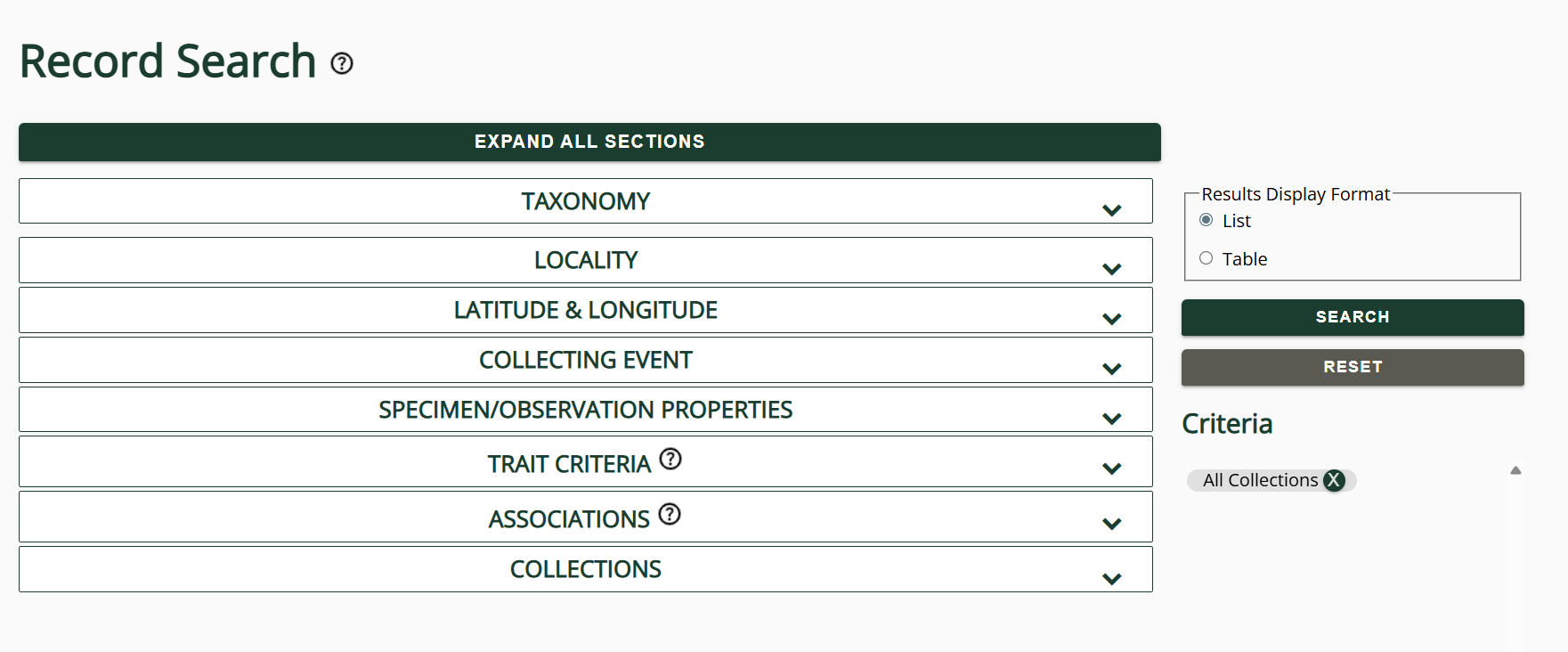
On the next page, you can enter search criteria to find records of interest. Click the Expand All Sections button if you would like to see all of the possible criteria you can search on.
-
Once you have selected your desired search criteria, indicate whether you would like to see the results in a List (100 per page) or Table (1000 per page) format using the radio button above the Search button.
-
Click the Search button on the far right to conduct your search.
 |
|---|
| Publicly accessible search form visible on Symbiota portals. Additional criteria may be present in your portal, depending on how it is configured (see Geological Context and Taxon Character Criteria below). |
Search Criteria
- The criteria you can use will vary depending on the portal, but generally include the following categories: 1) Taxonomic Criteria, 2) Locality Criteria, 3) Latitude and Longitude, 4) Collecting Event Criteria, 5) Specimen/Observation Properties, 6) Trait Criteria (if enabled), 7) Associations (if they exist in your portal), 8) Geological Context (if enabled), and 8) Taxon Character Criteria (if enabled).
- Any number of criteria can be entered and search at the same time. The criteria you are searching by will show up as "chips" on the right side of the screen under "Criteria." Click the X on any of these chips to remove them from your search criteria.
- You can search for multiple values in a single field by separating the values by commas. For example, if you want to search by both Kern and Inyo counties, you should enter "Kern,Inyo" in the county field.
To return to the Search Criteria page and refine your search, click the "back" button in your browser.
Taxonomic Criteria
Here you can search by the scientific or common name(s) of your specimens of interest. Once you start typing a name, a dropdown list (drawing from the portal's taxonomic thesaurus will show up from which you can select the taxon of interest. You can alternatively enter a value not in the dropdown list. To search by common name, select "Common Name" from the Taxon Type dropdown list. Not all Symbiota portals have well-populated lists of common names. In these cases, searching by common name may be limited.
Locality Criteria
In this module you can search by country, state/province, county, locality, and elevation values. Once you start typing a name, a dropdown list (drawing from the portal's geographic thesaurus) will show up from which you can select the geographic unit of interest, if desired. You can alternatively enter a value not in the dropdown list. Searches using these criteria are text-based searches which attempt to match the value you enter into the search fields to the values in the corresponding fields of records. Note that the taxonomic thesaurus does not allow automatic searching across geographic synonyms at this time. This means that searching for records collected in "NV" will not return all the results for records collected in "Nevada", etc.
In some portals, this section will also include the ability to search by pre-loaded polygons. These are spatial polygons that are of particular importance to the portal community, such as park boundaries, seed transfer zones, or other places of interest. If you select a polygon from this list, your search will only return records that have coordinates that fall within that polygon. Contact your portal administrator for more information about polygons available in your portal.
Latitude and Longitude
To define a latitude/longitude bounding box, polygon, or point with radius in which to search, enter the values in the provided fields or click the appropriate button at the top of the Latitude & Longitude search criteria to create the box, shape, or point radius in the mapping interface.
Collecting Event Criteria
Use this module to search for records based on collector, collector number (common for plant specimens), and date of collection/observation.
Specimen/Observation Properties
Here you can search by catalog number or limit your search criteria to only include records that are types (i.e., have a value in the TypeStatus field), records that have media, records that have genetic data, records that are georeferenced, or records that have material samples (if enabled in your portal). You can also opt to include cultivated or captive records in this criterion category.
Trait Criteria
For more information about traits, visit this page. Here you can limit your search to include only records with certain values of trait criteria. "Traits" in Symbiota portals are defined as characteristics of specific specimens, such as measurements or facts about that specimen (e.g., phenology, color, etc.). Note that the search will only be able to provide you with records that have been scored for those particular traits, and the absence of a certain trait value applied to a specimen does not necessarily indicate that a trait value does not apply to a record. Furthermore, this search module is an "OR" search. Selecting multiple trait values will return all records with at least one of those traits.
Associations
For detailed instructions on how to use associations searches, visit this page. This module is used to search for documented associations between records and other things, such as other specimens/observations, literature, or other "extended specimen" information. This search will result in records that have a formally linked association of a record with the taxon you enter into the Associations module. The absence of a certain association in the portal does not necessarily indicate that this association does not exist in, e.g., the "associatedTaxon" field.
Geological Context
This section of the search form will be available if an entire portal is configured for managing and sharing fossil specimen data. It enables users to search for occurrence records associated with lithostratigraphic (Group, Formation, Member, Bed) and chronostratigraphic (Early Interval, Late Interval) information.
Here are some tips for using this section of the search form:
- Correctly querying Early Interval and Late Interval requires a user to specify values in both fields, even if the values are the same. For example, Early Interval="Jurassic" and Late Interval="Cretaceous" or Early Interval="Jurassic" and Late Interval="Jurassic" are both correct queries, whereas leaving either field blank/null will return an error.
- Search results based on Early Interval and Late Interval will be inclusive of all records associated with the specified time intervals. For example, searching on Early Interval="Cretaceous" and Late Interval="Cretaceous" will return all records with a Late Interval or Early Interval value that overlaps with the Cretaceous period in geologic time, e.g., all records cataloged as "Cretaceous" to "Cretaceous", in addition to records cataloged as "Jurassic" to "Cretaceous", "Campanian" to "Maastrichtian", "Late Cretaceous" to "Paleocene"—among many other possible combinations.
- Unless indicated differently on a given Symbiota portal, the default values for Early Interval and Late Interval are based on the International Commission on Stratigraphy's Chronostratigraphic Chart.
- The same constraints apply to searches conducted using the Map Search interface.
Taxon Character Criteria
Here you can search for records that belong to taxa with certain characteristics. "Characters" in Symbiota portals are defined as taxon-level characteristics, for example, "plant habit" for a species or "presence of elytra" for certain insect species. Note that the search will only be able to provide you with records belonging to taxa that have been scored for those particular characters, and the absence of a certain character value applied to a taxon does not necessarily indicate that a character value does not apply to that taxon. This module is an "AND" search. Selecting multiple character values will return all records with all of those character states. For more information about characters and character states, see the pages referring to Identification Keys.
To view the results in a table or to sort the search results, click the Table Display button.  In the Search Results box at the top of the page, select the field you would like to sort by, a second field you would like to sort by (if applicable), then whether you would like to sort results in ascending or descending order. Then click Sort. To switch back to list view, click the List Display button.
Map Search
 |
|---|
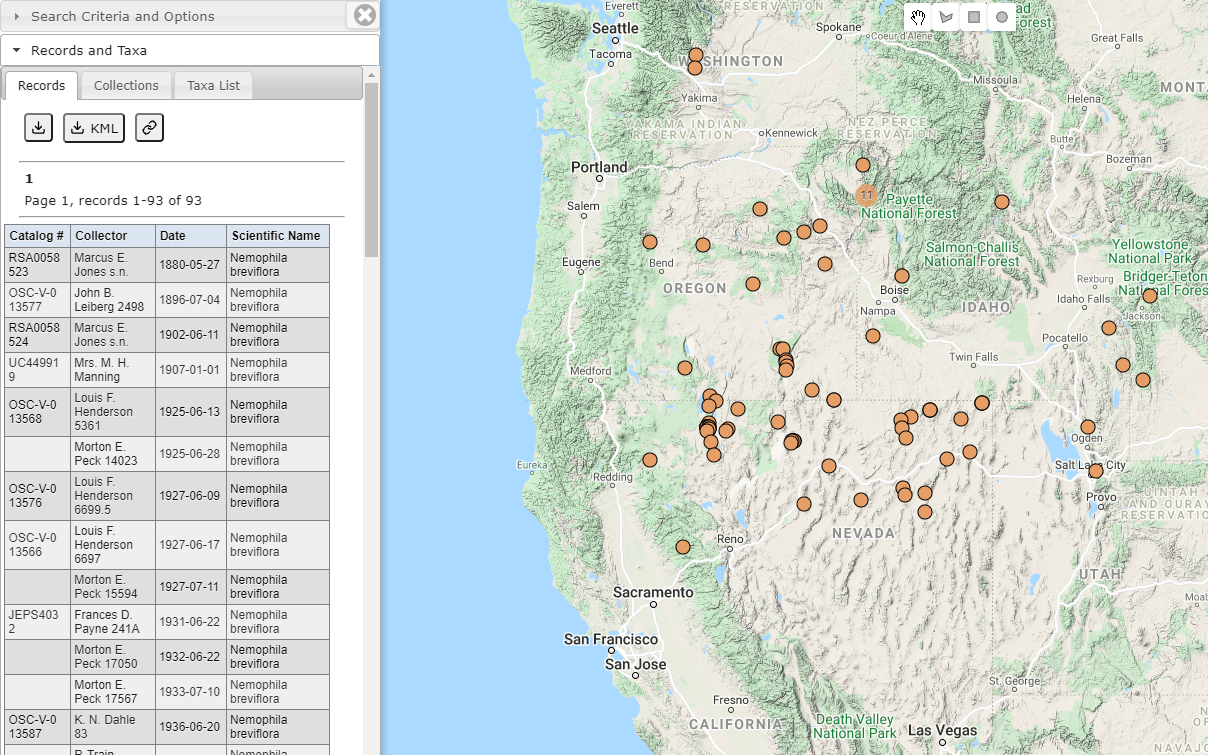
| Publicly accessible Map Search interface visible on Symbiota portals |
Depending on the portal, the Map Search function may be under the Search Collections menu item, or listed as a separate menu item on the homepage.
Click the Open Search Panel button in the top left corner. Once open, you can enter the same types of criteria into this search panel as were available in the regular search (described above). Then click the Search button.
To select specific collections from which you would like to search, select the Collections tab in the search panel, then check or uncheck boxes next to collections as desired.
Further customizations can be made in the Map Options tab of the search panel including grid size and min. cluster size. These will affect how many specimens will be clustered together on the map. You can also turn off clustering in this tab.
Portals configured for managing and sharing fossil specimen data may display additional fields within the Map Search Criteria panel (Group, Formation, Member, Bed, Early Interval, Late Interval). The instructions that apply to the Geological Context section of the main public search form also apply to the Geological Context fields on the Map Search interface.
Once you have conducted a search, you can view a list of specimens by clicking the Open Search Panel button and viewing the Records and Taxa menu item. You can also download the specimen records, download a KML file of the specimen records, or generate a shareable link to these search results by clicking on the respective buttons on this page.
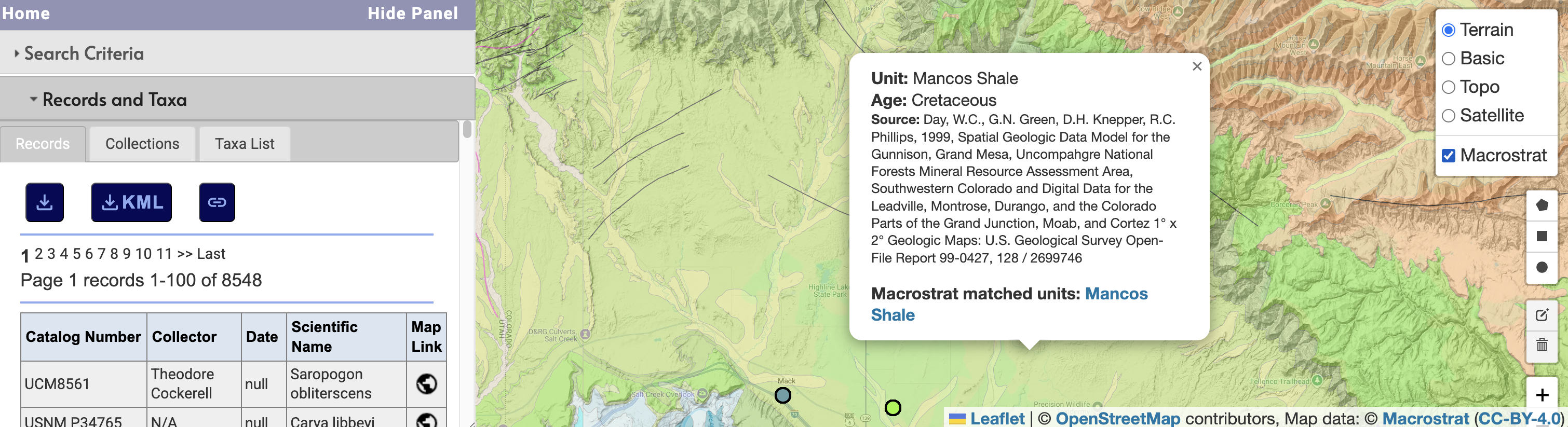
When using the Map Search, hover over the layer icon (☰) in the upper right-hand corner of the map window to turn additional map layers on/off.
Cross-Portal Search
This feature is not available in all portals.
Some portals include the ability to search not only in the portal database, but also in the database of another, connected Symbiota portal. This option is only available in the Map Search interface.
To use this feature, navigate to the Map Search in your portal and check the box next to "Enable Cross Portal Search". You will then see a dropdown list of the available portals to search and new "Taxa" field. Select the desired portal (there will likely only be one) and enter the name of the taxon or taxa that you would like to search in the other portal. The "Taxa" field at the very top of the form will reference your current portal's taxonomic thesaurus, while the "Taxa" field under the Cross Portal Search option will reference the taxonomic thesaurus of the other portal (the one selected in the dropdown list).
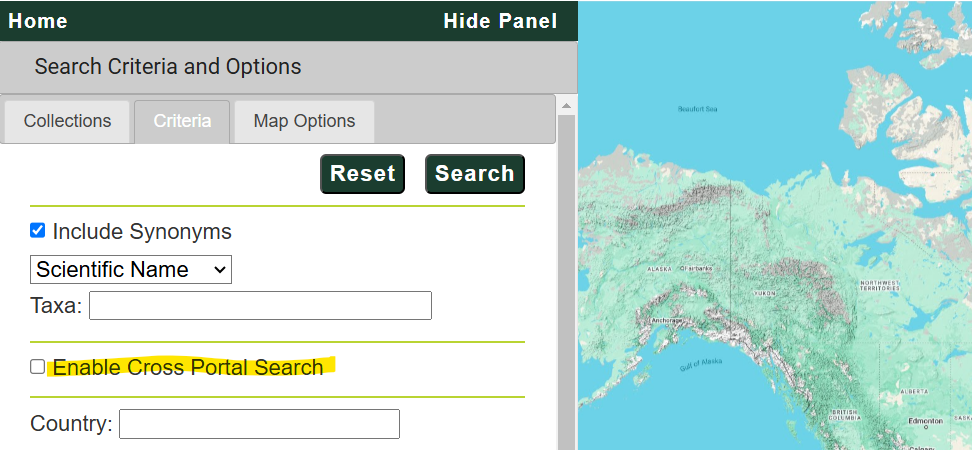
The resulting map will include results from both portals you have searched. The dots will be colored by taxon by default. To color the dots by portal, click the Portal List tab and click the Auto Color button.
The "Records" tab will list all the records from the portal you are in, and the "External Records" tab will list all the records from the outside portal that you are also searching.
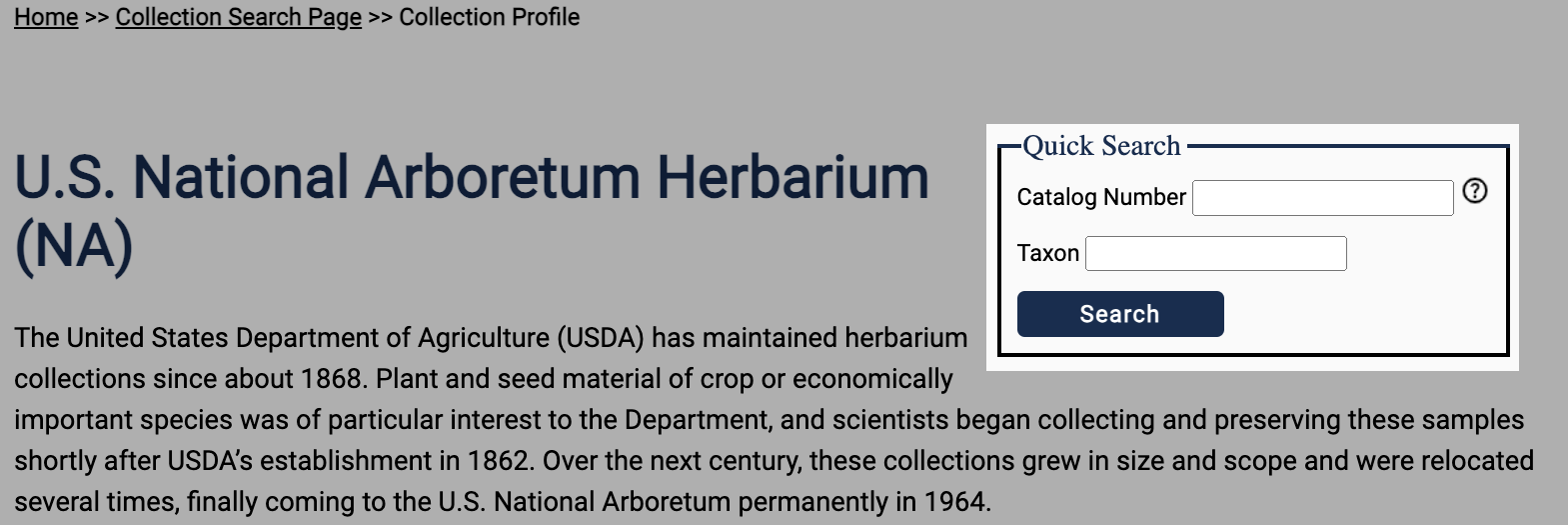
Quick Search
Using Quick Search forms, you can search for multiple taxa (scientificName values) or, where applicable, Catalog Number values by listing your search criteria in a semi-colon delimited list, e.g. "Rosa abietorum;Rosa alba" or "100;1000".
By portal
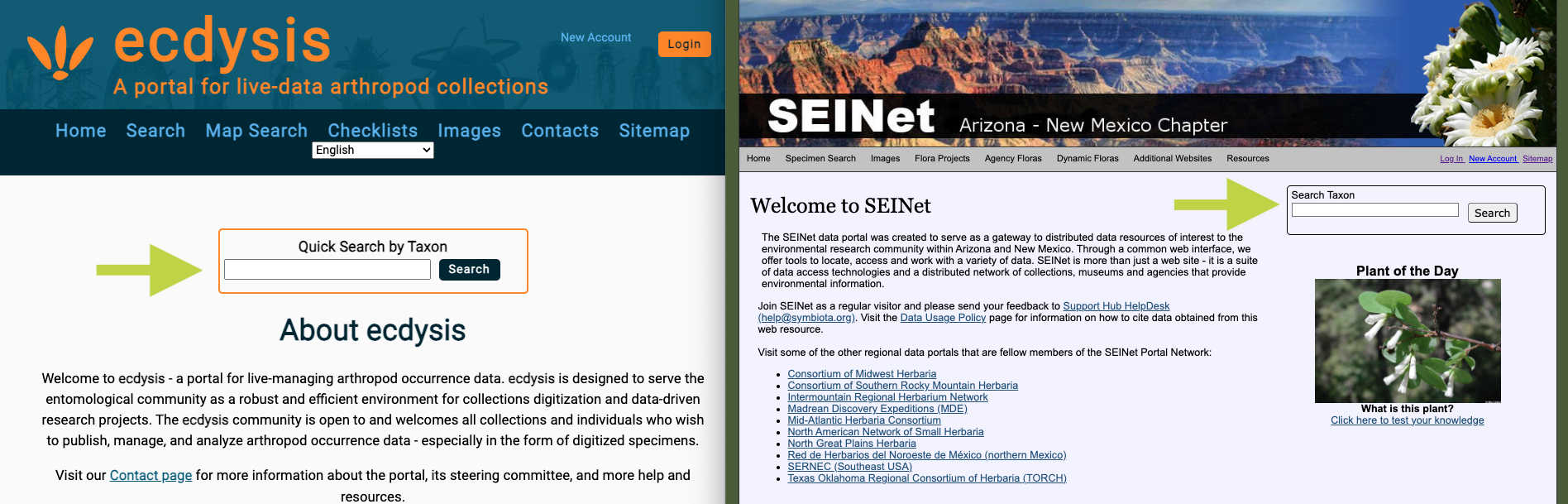
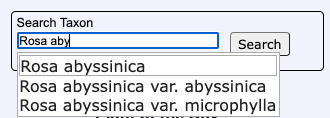
Some Symbiota portals feature a portal-wide taxon quick search form on their homepage. Use this form to search for all specimen records in the portal that are linked to the portal's central taxonomic thesaurus by typing directly into the form and then selecting the "Search" button. If you begin typing a scientific name in this box and a dropdown list does not appear (shown below), then the taxon you are searching for does not exist in the portal's taxonomic thesaurus.
By collection
Similar to the portal-wide quick search forms described above, some Symbiota portals feature quick search forms on Collection Profiles to facilitate searching for records limited to individual datasets. Currently, these forms can be used to search within a given Collection Profile by Catalog Number or Scientific Name (Taxon).